How to Run Signal-Based Outreach on LinkedIn and Email in 2027
How to run signal-based outreach in 2027: lock event types, filter for intent, name a person, pick LinkedIn or email, and approve each first line.
Adarsh Kumar
GTM Expert
Founder — CommunityTracker, Miraa.io, and Infraboxes
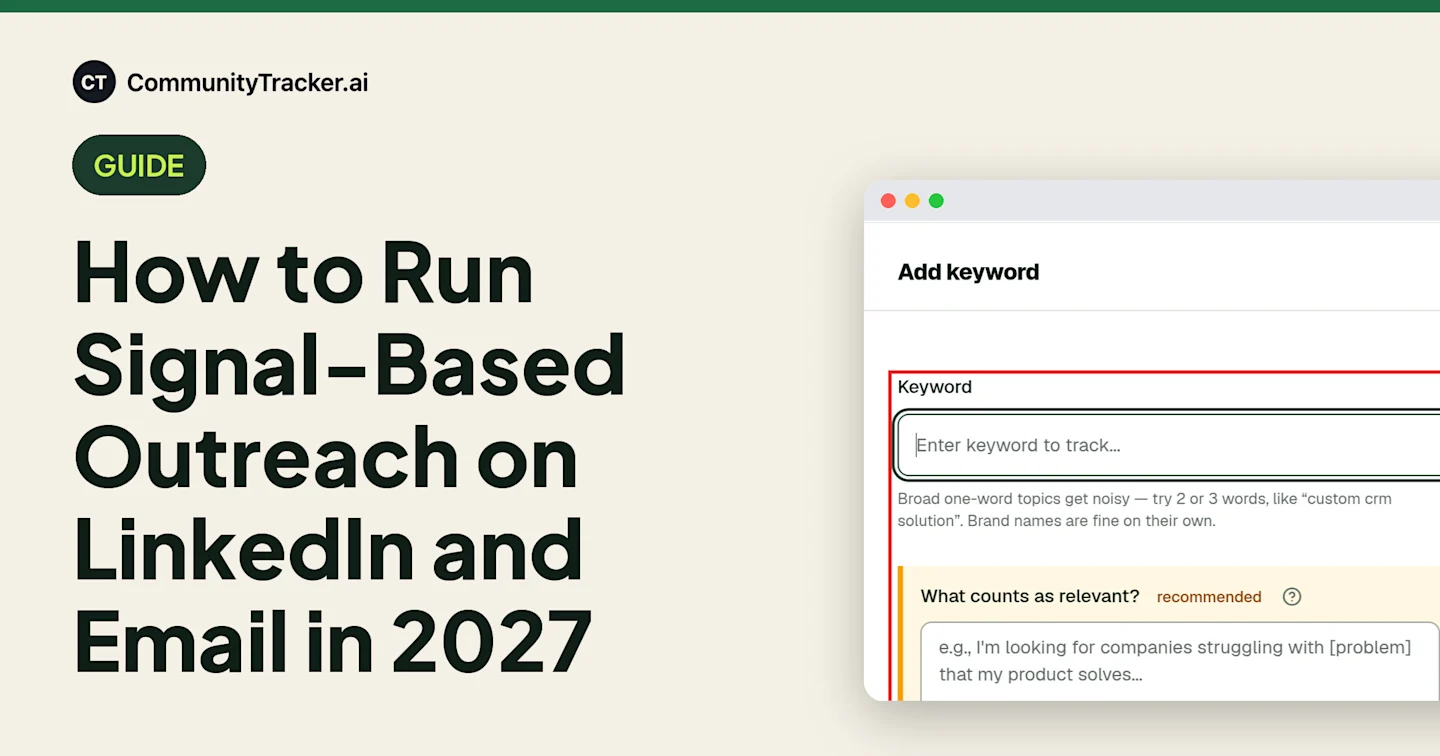
You have a hiring post, a funding round, and a buyer asking for tool picks spread across three tabs, and by the time someone writes to them the moment has passed, which is why you’re looking up how to run signal-based outreach.
Revenue teams now let AI agents watch accounts and write the first draft, while a person keeps the call on what gets sent. Someone still has to pick the event, name the person, and own the first line.
I’m sure you’ve tried a longer sequence in your mail tool or a bigger list from a data vendor, and the replies still read like the buyer had no idea why you wrote.
Below are the six moves I’d repeat every week, in the order I’d run them. I’d run all six in CommunityTracker, because it scores community posts, ranks account events, and sends from your own LinkedIn and mailbox.
TL;DR: Run signal-based outreach as a weekly loop where every note starts from a fresh event and goes to one named person on the channel that event points to. I’d run that loop in CommunityTracker.
What running signal-based outreach means
Running signal-based outreach means turning recent buyer events into a short daily queue, naming one person per event, and sending one note on LinkedIn or email whose first line falls apart without that event.
The definition and the events I trust sit in what signal-based outreach is and the list of B2B buying signals. This post covers the routine you repeat each week.
About five years of GTM work, at startups I helped grow from zero past $5 million ARR, taught me to keep this loop small: few event types, one owner for the queue, and sends on the day the event appeared.
1. Lock two or three event types and turn them into keywords
On Monday, pick the events you’ll act on this week. A buyer requesting picks in your category, a complaint about a rival, and a company hiring into the team you sell to already make a full plate for one founder.
Write each type down before you collect a single post. If the list changes on Wednesday, Friday’s review can’t tell you which type worked.
In CommunityTracker, each community event type becomes one keyword: a short buying phrase, plus a line under What counts as relevant? that defines the post you want. Starter holds 4 keywords, Pro holds 10 and adds the AI keyword advisor, and Advanced holds 20.
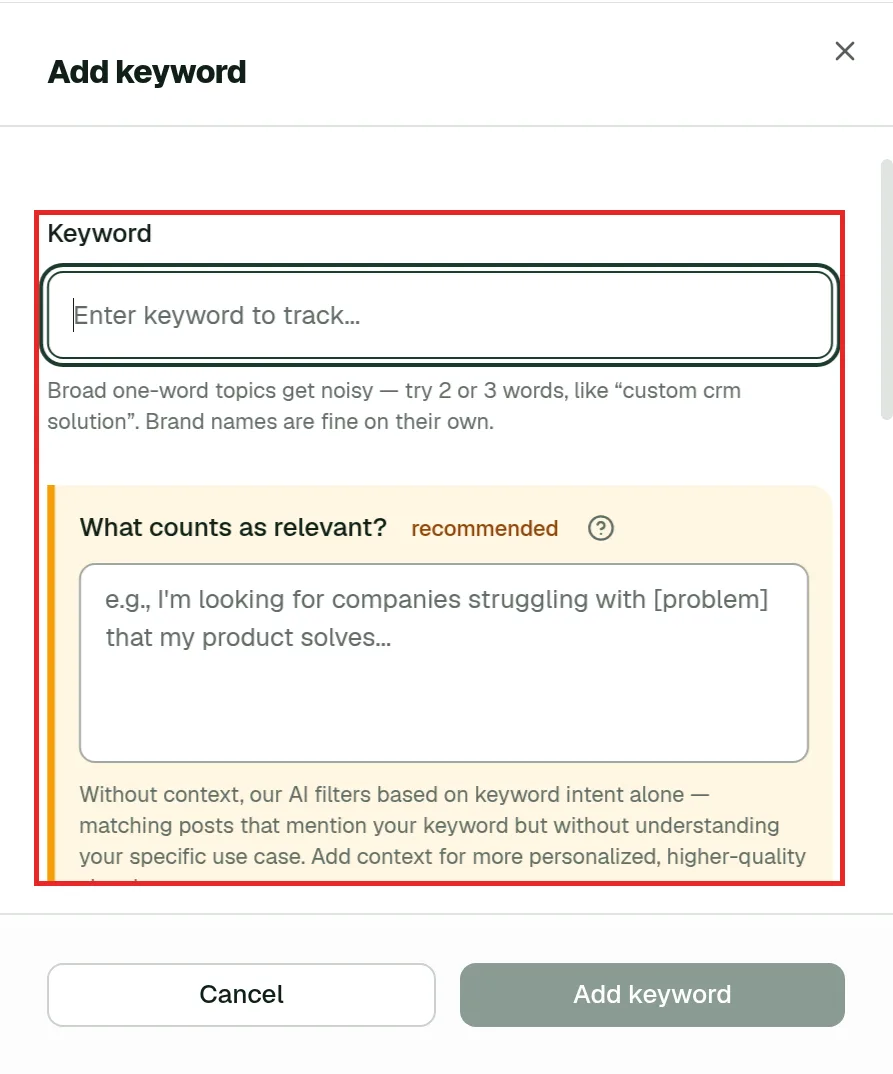
I’d give each event type its own keyword (sample data from a tracked set), then spell out under What counts as relevant? the buyer moment I want.
An event type you can’t write in one sentence is too loose to send from.
2. Strip the queue down to buying intent
Plenty of keyword matches are tutorials, launch posts and job seekers. Remove those before anyone writes, so the queue only holds people who are choosing, switching, or stuck on a rollout.
AI intent scoring and filtering come with Pro and Advanced. Inside Posts Filters, the Intent chips let you keep Implementation help, Switching from a competitor, Comparing tools and Team decision.
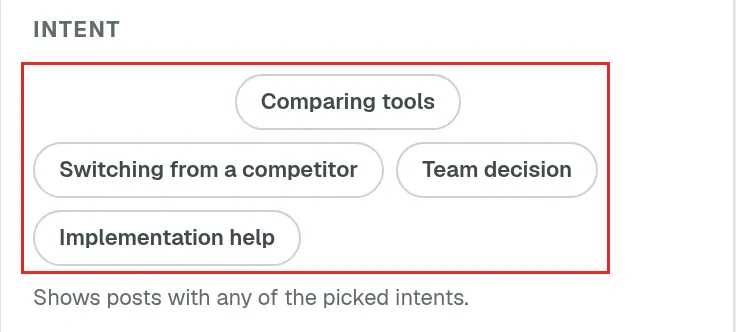
I’d tick the four chips tied to a purchase and leave every other chip off, so the morning queue opens on buyers (sample data from a tracked set).
A short filtered queue gets worked. A long raw one gets skimmed and closed by ten o’clock.
3. Work the highest-scored rows in one daily slot
Block the same slot each morning. Open the queue, sort by score, and give each row one of three outcomes: send today, move to watch, or drop.
Every post gets an intent score, and buying signals get a Hot, Warm or Watch tier plus the reason behind it. Alerts come daily on Starter, and Pro and Advanced also post daily Slack alerts in whichever channel your team chooses.
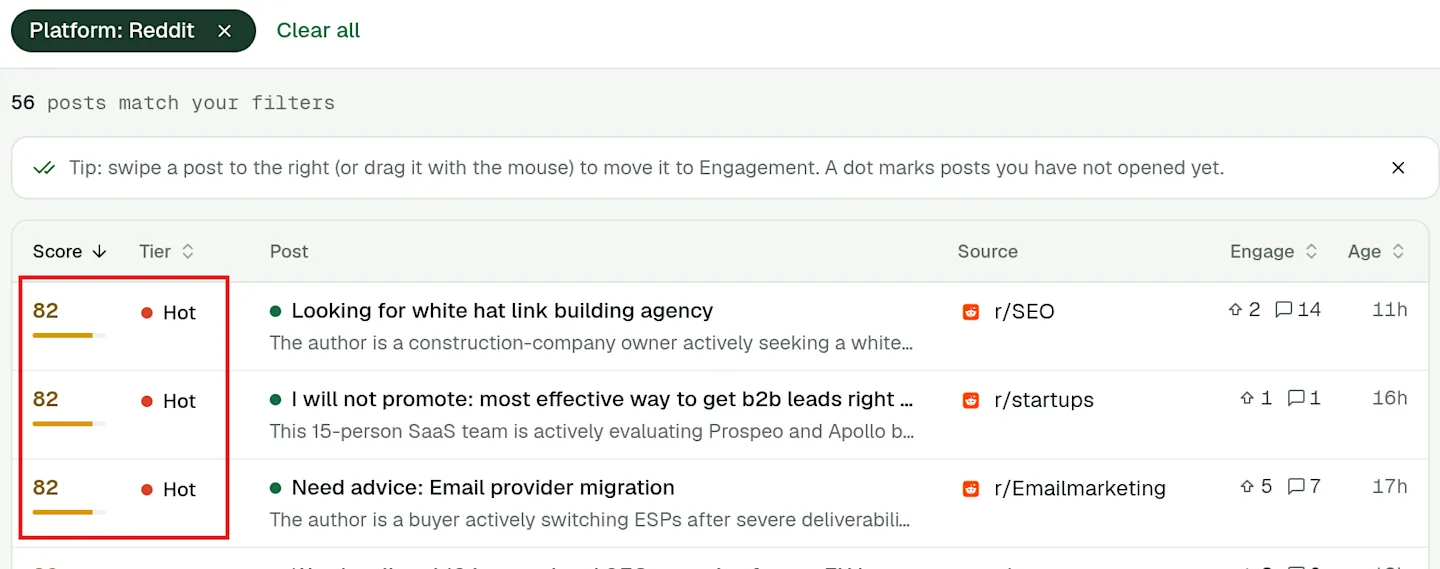
I’d sort by Score and work down from the top Hot rows (sample data from a tracked set), stopping when the morning slot ends.
A Monday event sent on Friday lands as a cold note. I’d rather clear five rows today than twenty on Thursday.
4. Put a named person on every account event
Job changes, funding and hiring point to an account that moved, and you still need the person who should hear from you. Before a row goes into a campaign, add the name, the role, and one line on why that person owns the problem.
CommunityTracker ranks job changes, funding and hiring next to community posts. Lead lists and enrichment on 30+ data points come with every paid plan, and enrichment lookups use credits. You can also enrich with your own Apollo, Prospeo, Icypeas or Leadsforge key.
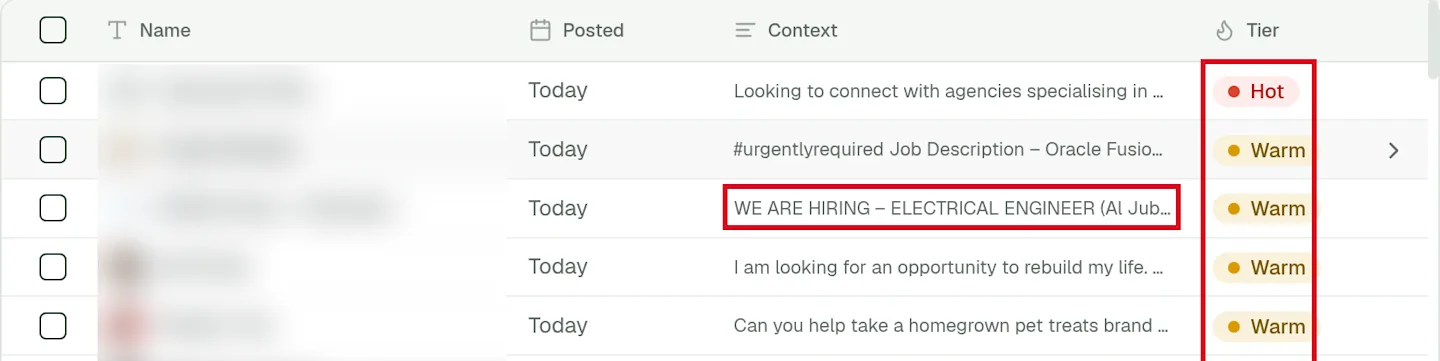
In my Leads table, I’d read the boxed hiring post in Context beside its Tier before choosing who gets the note.
If I can’t name the person the same day, the event goes to the watchlist. Guessing a title to keep the queue moving burns the account.
5. Let the event choose LinkedIn, email, or both
A public post earns a LinkedIn note first, because the buyer already raised the issue in the open. A new role or a funding round often reads better by email, where you have room for context.
Every paid plan comes with campaigns written from the signal. On LinkedIn that means connection requests and messages, and email leaves from the mailbox you already use. Replies from both channels arrive in one inbox, and with your own key, leads can move on to lemlist, Smartlead, Instantly or Salesforge.
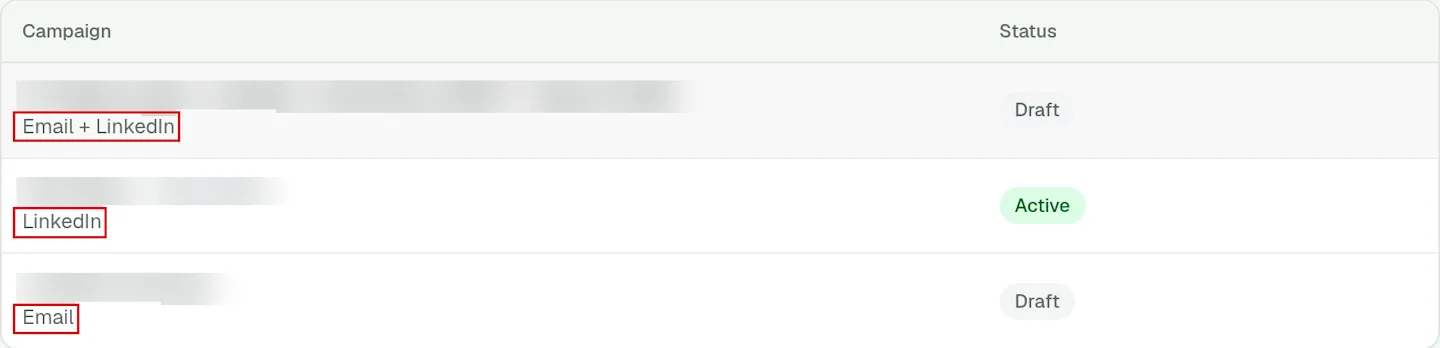
In my campaign list, I’d match each campaign’s channel line to the event behind it: Email + LinkedIn, LinkedIn alone, or Email alone.
Use both channels only when the second note brings something the first did not, such as a checklist. Two parallel cadences on one event is volume pretending to be research.
6. Write the first line from the event and approve it
Open with the event, ask one question or offer one next step, then stop. Run the strip test before you send: delete the event from the opening sentence, and if it still works, rewrite it.
Starter comes with reply drafts for posts, and Pro adds AI reply drafts. Auto-reply stays as drafts only, so a rep edits and posts every reply. Turn on approval and no campaign message sends until a teammate signs off on it.

In my campaign settings, I’d keep Review before sending on for every message, so a teammate reads the event line before anything leaves.
Approval costs a minute per note. A wrong first line on a fresh event costs you the account.
How I’d review the week on Friday
Keep a short log: date, event, person, channel, first line, and the reply. Hot and Warm posts can also become HubSpot deals with the signal attached, so the record sits in your CRM.
On Friday, give it half an hour and three questions:
Which notes got a reply, and did the event still carry the first line?
Which notes went out a day or more after the event?
Which events should have stayed on the watchlist?
Change next week’s event types only after this review. If a type keeps producing late sends or empty first lines, drop it for a week and try a narrower one.
Three signal plays with placeholder first lines
Treat each play below as a pattern. Fill the brackets only with details you can point to in the event itself.
A new revenue leader at a target account
A fresh leader is reviewing the stack they inherited. Act when the role owns the workflow you sell into. Skip lateral moves inside the same team with the same tools.
Example play:
Signal: [Name] started as [Role] at [Company]. Channel: Email, since the move came without a public post. First line (placeholder): “[First name], a new [Role] seat at [Company] tends to start with a hard look at [Workflow]. Is that review on your desk yet, or already settled?”
A buyer asking for a tool in a community thread
A public request for picks is a buying question asked out loud. Act when the job they describe matches what you do. Skip threads asking for a category you don’t serve.
Example play:
Signal: A post in [Community] tagged Comparing tools, asking how to handle [Job]. Channel: LinkedIn, because the question is already public. First line (placeholder): “[First name], your question in [Community] about [Job] is the only reason for this note. Which part of [Job] is slowing your team down this month?”
A company hiring into the team you sell to
An open role in your buyer’s team points to budget and a process someone has to build. Act when the posting names the workflow you support. Skip broad intern cohorts and unrelated departments.
Example play:
Signal: Hot or Warm hiring post for [Role] at [Company]. Channel: LinkedIn first, then email a day later only if you can attach [Checklist]. First line (placeholder): “[First name], the [Role] opening at [Company] puts [Workflow] on a new owner’s plate. Who is setting up that process while the seat is open?”
What CommunityTracker costs for this loop
For this weekly loop I’d choose a plan on monthly billing: Starter at $39, Pro at $99, or Advanced at $199 (plan details).
A seven-day trial costs $4.99.
Inside that week, one full loop runs on every Pro feature with 5 keywords across all 10+ platforms, and no second charge follows when it ends.
Starter alerts once a day.
Starter keeps you on Reddit, LinkedIn, Hacker News and GitHub, while the other platforms in the 10+ set need a Pro plan.
100 warm emails a month on Starter, unlimited on Pro.
When a single week of sends starts pushing past that Starter cap, Pro is the plan I’d move to.