How to Set Up Social Listening Alerts for Sales in 2027
How to set up social listening alerts for sales in 2027: set pain keywords, filter buying intent, triage Hot and Warm leads, and route daily alerts.
Adarsh Kumar
GTM Expert
Founder — CommunityTracker, Miraa.io, and Infraboxes
A prospect already bought from a rival after posting a public question your reps missed, or your current sales alert channel gets muted under off-topic noise, which is why you’re looking up social listening alerts for sales.
B2B sales teams now connect Claude and GTM agents to their buying signals so scored hits land in Slack with a drafted reply awaiting human sign-off. A person still has to decide which threads merit a ping.
I’m sure you’ve tried manual saved searches on LinkedIn or Reddit, Google Alerts, or a PR monitoring tool, and landed here after reps spent mornings deleting press releases and job-seeker posts instead of messaging buyers.
Walk through these six steps to build sales alerts your reps will work from every morning: aim keywords at buying phrases and rivals, lock down the platforms, apply intent filters, triage Hot and Warm tiers, route a daily queue with Slack on Pro and Advanced, and send a reviewed first touch. I’d run this setup inside CommunityTracker because it pairs intent scoring and daily alert routing with built-in reply outreach.
TL;DR: A sales alert is worth a ping when it carries clear buying intent, a named owner, and a direct reply path. I’d set this up in CommunityTracker.
What social listening alerts for sales are
Social listening alerts for sales notify your reps on a schedule whenever a buyer asks for software picks, complains about a rival, or posts a company trigger in public, with one owner named to act.
An unfiltered brand stream is intake, not a sales alert. Before turning on any notification, name who owns the queue, what disqualifies a match, and what the first touch looks like. When reps spend their mornings clearing noisy pings, the alert channel goes silent quickly.
At the startups I helped scale past $5 million ARR, the teams winning deals from public threads run the strictest keyword cutoffs. For tool choices, compare social listening tools, check Google Alerts setup, or read demand signal detection.
1. Set keywords around buying pain and rival names
Every noisy alert channel starts with a broad category noun and zero context rules. Target exact buyer frustrations from sales discovery, alongside competitor names joined with migration or switching terms.
Open CommunityTracker’s Add keyword panel, type a brief phrase of two or three words into the Keyword field, and describe your qualifying buyer scenario inside the relevance field. Starter covers 4 keywords, Pro covers 10 keywords along with the AI keyword advisor that reviews catches and suggests edits, and Advanced covers 20 keywords.
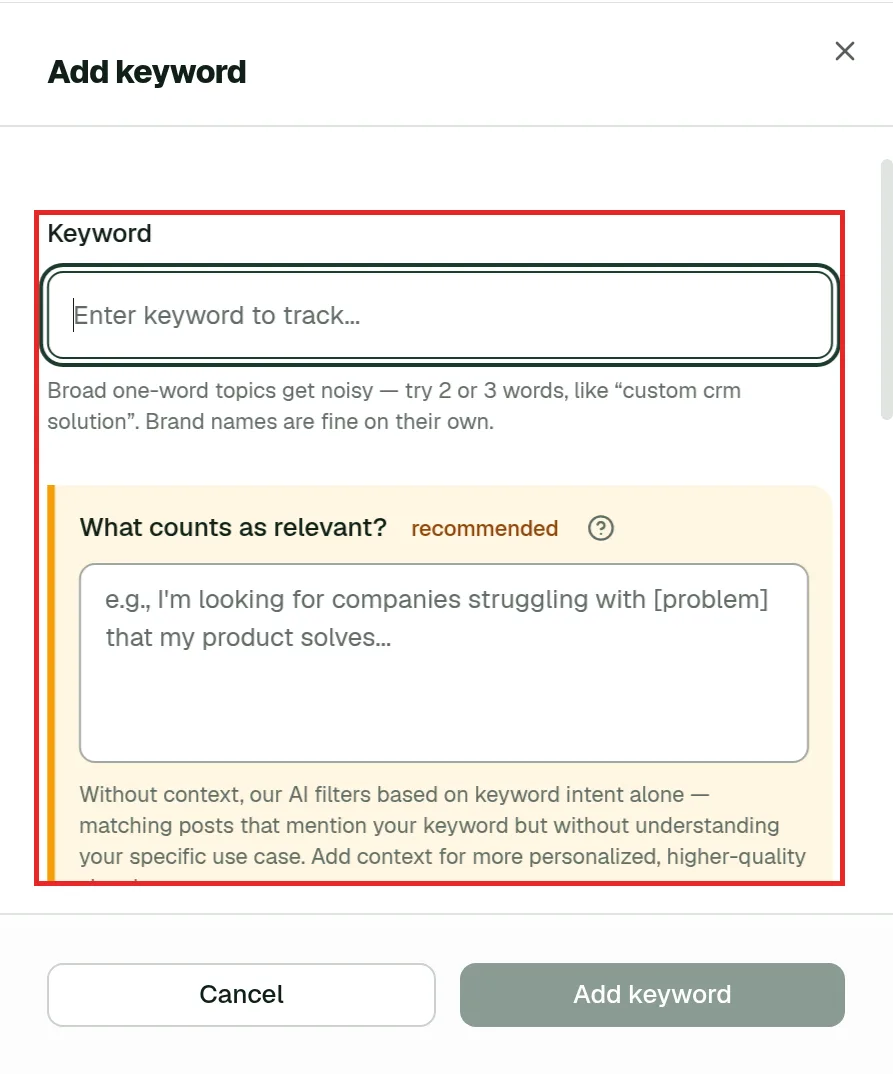
I’d enter a specific buying phrase inside Keyword and explain the exact prospect pain inside the relevance prompt (sample data from a tracked set), blocking broad chatter before it hits the queue.
If your first keyword is your own company name, you built an ego tracker, not a sales alert.
2. Pick buyer platforms instead of watching every network
Reps ignore alerts the moment irrelevant channels flood the queue with consumer chatter or hobbyist threads. Select only the communities where target decision makers and technical evaluators debate software publicly.
Starter covers four sources: GitHub, Hacker News, LinkedIn, and Reddit. Upgrading to Pro or Advanced adds Slack, Discord, Stack Overflow, Indie Hackers, Dev.to, and X to complete the 10+ list. Quora, Facebook, Instagram, and TikTok are not covered.
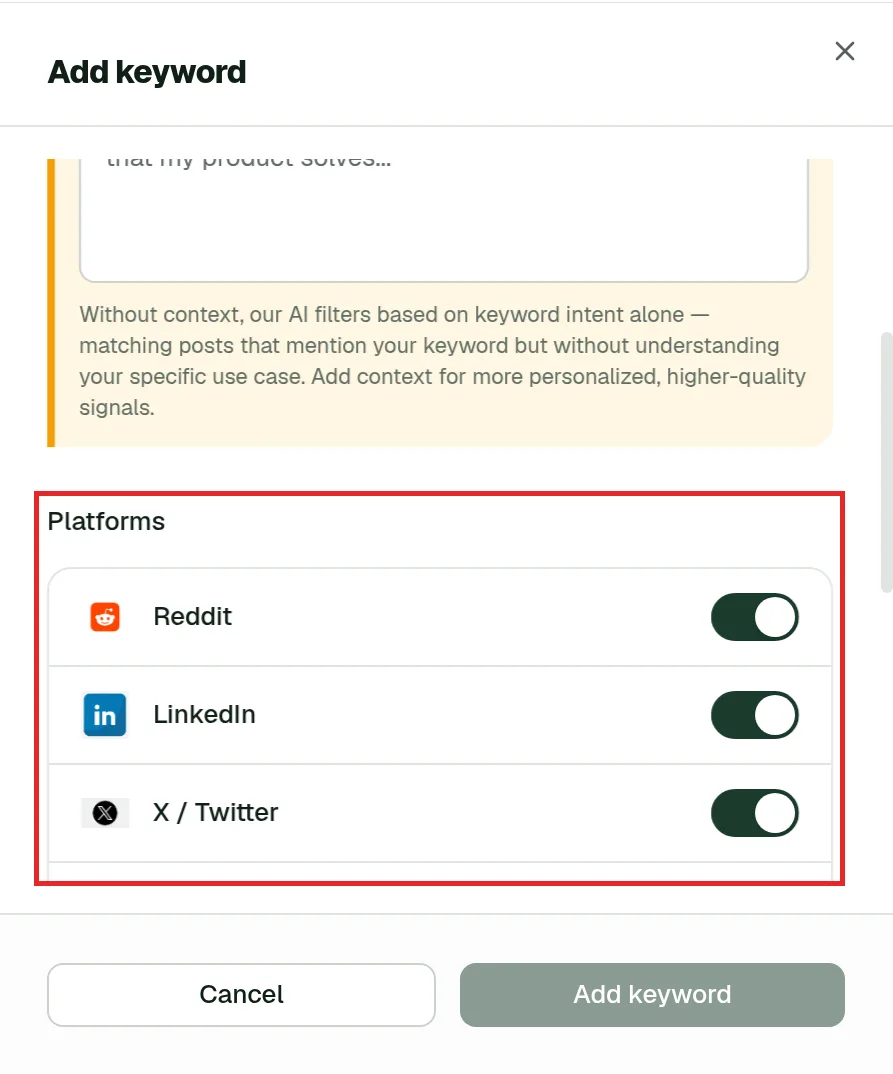
I’d flip on only Reddit, LinkedIn, and X / Twitter where a sales territory buys software (sample data from a tracked set), leaving off-market channels switched off.
Watching a platform where your buyers never ask for tool help just trains reps to ignore the channel.
3. Filter matches by buying intent
Keyword hits still pull in tutorials, podcast promos, and hiring posts that should never trigger a seller ping. Filter your queries by intent so sales only reviews posts where someone is actively evaluating options or asking for help.
Pro and Advanced provide AI intent scoring and filtering. Inside Posts Filters, pick Comparing tools, Team decision, Switching from a competitor, and Implementation help based on whether your sales floor works net-new evaluations or rival displacements.
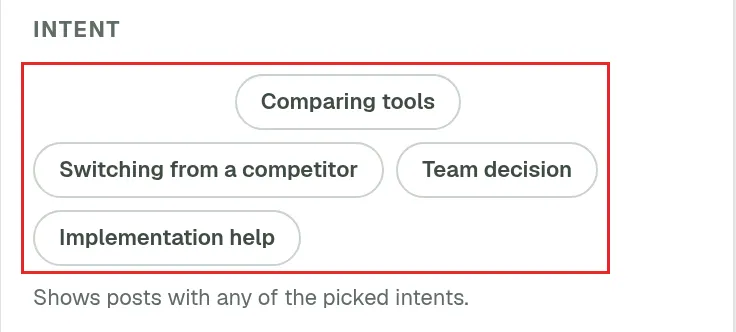
I’d turn on Comparing tools, Team decision, Switching from a competitor, and Implementation help inside the Intent group (sample data from a tracked set), keeping active buying threads separated from news links.
Sending an unfiltered keyword match to an account executive wastes more selling time than sending nothing.
4. Triage Hot and Warm tiers before alerts reach reps
A sales rep opening an alert should know at a glance why the account matters today. Separating top-priority triggers from passive background chatter keeps the morning queue short enough to finish before discovery calls begin.
Every paid plan and the trial rank buying signals as Hot, Warm, or Watch, attaching a reason to each signal. Coverage spans job changes, funding, and hiring alongside community posts asking for tools, complaining about a rival, or comparing options. Focus daily rep pings on Hot and Warm rows, and leave Watch items for account research.
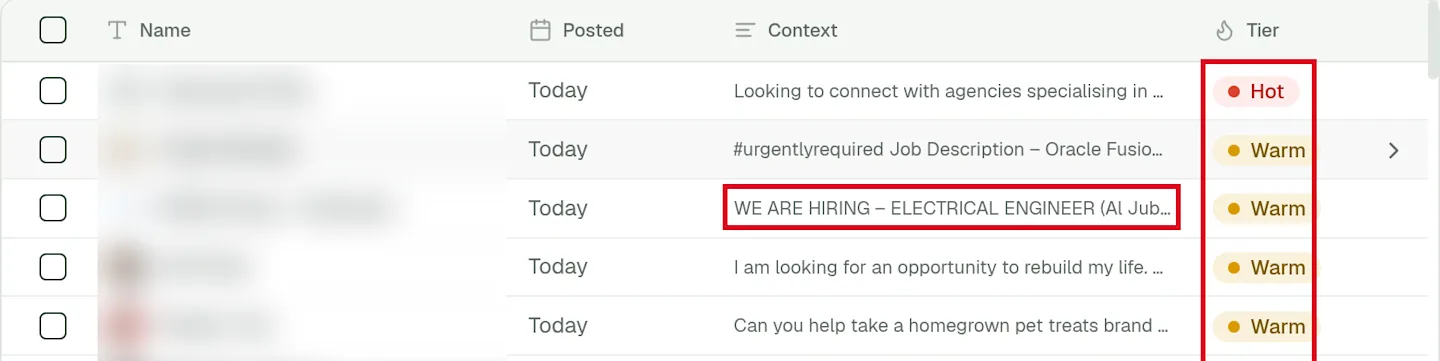
I’d check the Tier column for Hot and Warm rows alongside the boxed hiring post in Context before queuing any outreach to an account.
Treat Watch rows as a sales alert and your reps will mute the feed before Friday.
5. Route a daily queue with Slack on Pro and Advanced
Insights buried inside an analytics tab do not turn into outbound pipeline. Put qualified alerts in a daily queue your sales team clears each morning, and use daily Slack alerts on Pro and Advanced. Sync high-priority leads to your CRM.
On Starter, alerts run once a day. Choosing Pro or Advanced enables daily Slack alerts routed to a channel your team selects, with built-in HubSpot CRM sync for Hot and Warm threads.
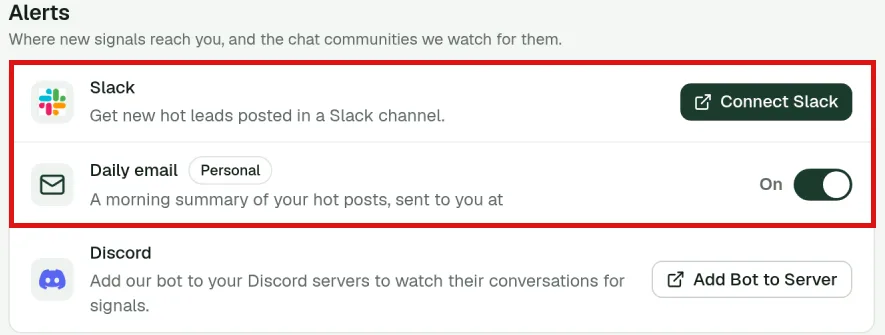
In my account, I’d turn on Slack channel delivery and the Personal Daily email toggle so reps start each workday from one queue.
Do not expect any cadence faster than daily alerts. A once-a-day queue a rep clears every morning beats a noisy stream nobody opens twice.
6. Send a reviewed first touch from the alert
An alert only creates pipeline when a rep sends a relevant follow-up while the buyer’s problem is still active. Keep drafting close to the signal rather than dropping leads into generic multi-month cadence templates.
LinkedIn and email outreach come on all paid plans, routing replies from LinkedIn and your connected mailbox into one inbox. Starter covers reply drafts for posts, while Pro adds AI reply drafts. Auto-reply operates as drafts only for a rep to edit and publish manually. Turn approval on so outgoing notes pause until a teammate approves them, or let campaigns deliver without manual review. You can enrich contacts using your own Prospeo, Apollo, Leadsforge, or Icypeas key, and export leads to lemlist, Salesforge, Smartlead, or Instantly.

I’d keep Review before sending active on every message so a seller verifies the signal hook before any email or LinkedIn note goes out.
Letting an automated sequence fire without a human check on a fresh alert costs more credibility than skipping the touch.
Three sales alerts and what I’d do with each
Even a clean daily alert falls flat if the rep sends a generic pitch. Keep each example below as a pattern with placeholders, filling in only verified details from the thread you opened.
A buyer comparing tools in a public thread
Comparison threads signal active vendor shortlisting, so speed and specificity matter more than polished brand positioning. Act when the buyer names your category or constraints you solve. Skip threads asking for student tiers or off-ICP stacks.
Example alert action:
Trigger: Public thread tagged Comparing tools across [Community], weighing [Rival A] and [Rival B] for [Use case]. When to act: The author names [Specific constraint] your product handles. Example opener (placeholder): “Your note in [Community] on migrating [Workflow] away from [Rival A] stood out because most teams stall on [Constraint]. I can send the two-step setup checklist [Role] teams use if you are still testing options.”
A buyer hitting friction with a rival
Switching alerts expose concrete operational failure that price discounts rarely fix. Act when the buyer cites a missing workflow or broken support loop. Skip generic rants with no timeline or business context.
Example alert action:
Trigger: Public post tagged Switching from a competitor naming [Rival] and [Broken workflow]. When to act: The poster owns or manages [Team function] at a company inside your target size band. Example opener (placeholder): “Your [Community] post on [Broken workflow] after [Rival] changed its setup is worth a reply. If comparing how another [Industry] team avoided that bottleneck during migration helps, I can pass along a short checklist.”
A target company posting a hiring signal
Hiring alerts point to fresh budget and an active tooling review while a new owner ramps up. Act when the open role owns the workflow your product replaces or supports. Skip broad graduate cohorts or unrelated departments.
Example alert action:
Trigger: Warm or Hot hiring post in Leads Context for [Role] at [Company]. When to act: The job scope names [Target workflow] or [Stack tool] you integrate with. Example opener (placeholder): “The open [Role] scope at [Company] calls out [Target workflow] directly. Teams standing up that function usually hit [Bottleneck] early, and I can share how peer teams handle it if useful.”
What CommunityTracker costs for sales alerts
Monthly plans in CommunityTracker’s tier lineup start at $39 on Starter, step up to $99 on Pro, and reach $199 on Advanced, adding keyword capacity, platforms, and alert routing as your sales desk grows.
A seven-day trial costs $4.99.
Every Pro feature for seven days, 5 keywords across all 10+ sources, and 3 community intelligence searches come with it, and nothing renews afterward.
Starter alerts once a day.
Starter includes 5,000 mentions, while Pro and Advanced carry unlimited mention volume.
100 warm emails a month on Starter, unlimited on Pro.
New subscriptions also offer a 14-day money-back guarantee, and any month can end without a long-term contract.