How to Find Buying Signals in LinkedIn Sales Navigator (and What It Misses)
How to find LinkedIn Sales Navigator buying signals in 2027: save the right leads, turn on job-change and account alerts, and cover the public posts it misses.
Adarsh Kumar
GTM Expert
Founder — CommunityTracker, Miraa.io, and Infraboxes
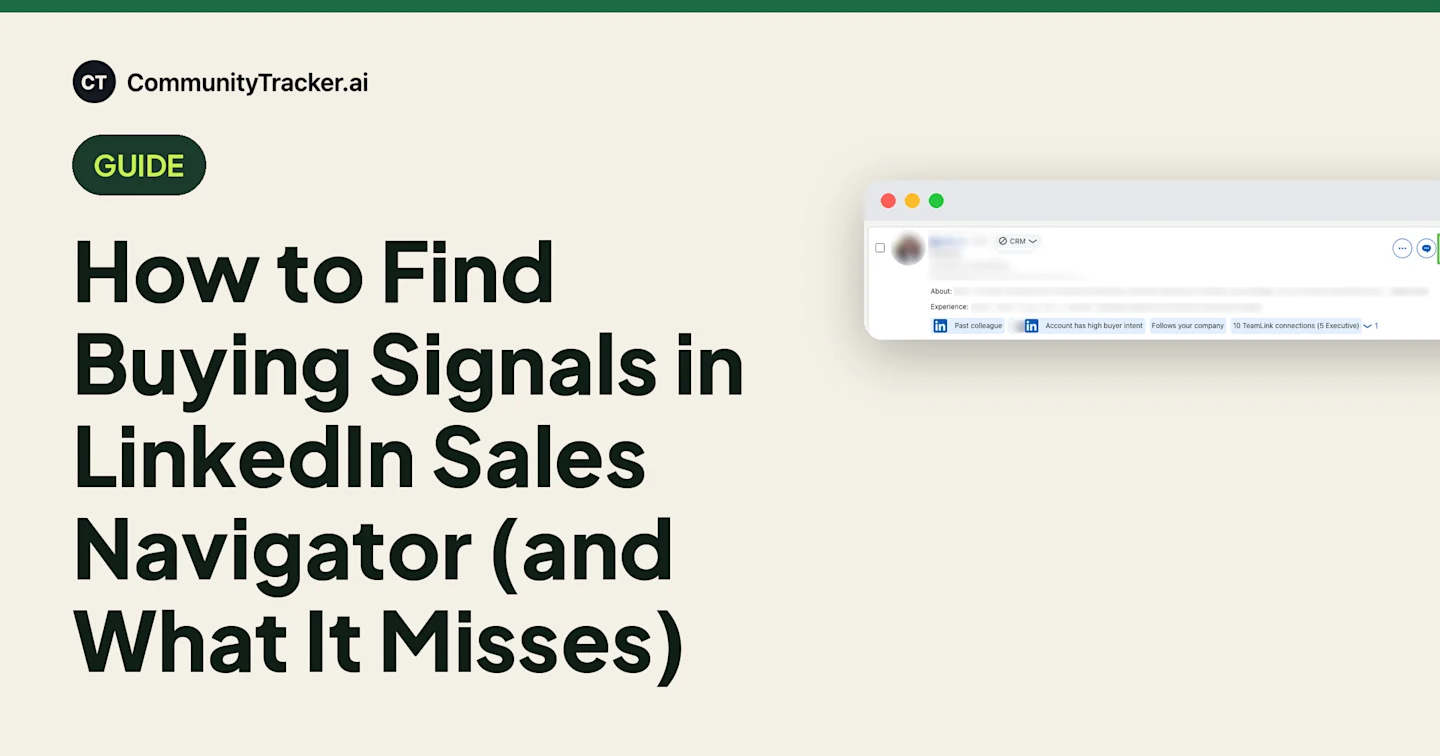
You pay for Sales Navigator seats, the homepage fills with alerts every morning, and your reps still can’t tell which ones point to a purchase, so here you are, reading up on LinkedIn Sales Navigator buying signals.
Sales teams now treat a hiring burst or a new leader at an account as an early sign of budget, often before anyone there starts researching tools. The event shows where to look. It can’t show what to say.
I’m sure you’ve tried saving every account in your territory or stacking a dozen search filters at once, and the alert feed turned into a second newsfeed.
Below are the six steps I’d run: three inside Sales Navigator for profile and account events, and three in CommunityTracker for the public conversations Sales Navigator doesn’t watch.
TL;DR: Sales Navigator is strongest on events tied to people and accounts you’ve saved, such as job changes, hiring, funding and visits to your own company page. It misses public posts from buyers you never saved, so I’d pair it with CommunityTracker for those conversations.
What Sales Navigator buying signals are
Sales Navigator buying signals are alerts and search filters that flag a change at a lead or account you track: a new role, a funding round, a hiring push, or someone engaging with your company. They show that something moved at the account. They don’t show what anyone there wants to buy.
The wider set of events, and how I rank them, sits in what signal-based outreach is. The weekly routine that turns them into messages is in how I run signal-based outreach.
About five years in startup GTM, at companies I helped take from zero past $5 million ARR, shaped one rule I keep for Sales Navigator: an alert earns a message only when you can name the person and the problem.
1. Save only the leads and accounts you’d message this quarter
Sales Navigator sends alerts only for leads and accounts you’ve saved. They show up on the Sales Navigator homepage and as LinkedIn notifications, where the key ones include a saved lead getting promoted or moving companies, a senior hire at a saved or CRM account, and new results for a saved search.
So the list you save is the filter. Keep it to accounts that fit your ICP and people who could sign or block the deal. Then set up saved searches for the profile you’d act on, so new matches reach you as alerts.

I’d click the boxed Save button on a lead like this only when I’d message that person this quarter.
A saved list you’d never message turns every alert into noise.
2. Turn on job-change alerts and use the Changed jobs filter
Job-change alerts need settings on two tabs. On the Email notifications tab, turn on Top Weekly Notifications. On the In-product notifications tab, under Activity about saved leads, turn on “A lead started a position at a new company” and “A lead started a position at the same company.”
That covers a saved lead moving to a new company or changing roles inside the same one. For people you haven’t saved yet, lead search has a Changed jobs (in the last 90 days) filter under Recent updates, next to Posted on LinkedIn (in the 30 days). I’d add the second one to any search of saved leads, since a lead who posts is a lead who reads the replies.
I’d act on a new leader before any other event here, because that person is about to judge the tools they walked into.
3. Read account alerts for hiring, funding and growth
Account alerts cover a saved account posting more jobs on LinkedIn, accelerated growth with more hiring and year-over-year headcount growth, a funding round, a merger or acquisition, and a senior hire at director level or above. There’s also a slowing-growth alert, which I’d read as a reason to wait.
Each alert has a More menu where you can remove it as not relevant, unsave the lead or account, or turn off that kind of alert. I’d switch off any alert type that hasn’t led to a single message in a month.
On the homepage, filter the All alerts tab by Accounts, Account lists, Lead or Lead lists, and sort by Relevance or Latest. On Advanced and Advanced Plus, Buyer Intent alerts flag employees or leadership at a saved account engaging with your LinkedIn company page or website. Website visits need a LinkedIn Insight tag on your site.
A funding alert on its own is a reason to research the account, and a weak reason to write to it.
4. Cover the public conversations Sales Navigator doesn’t watch
Every alert above starts from someone you saved. The buyer asking peers for a tool recommendation in a public post often isn’t on that list, and nothing in your alert feed will surface them.
CommunityTracker tracks keywords instead of saved profiles. It reads what people and companies post on LinkedIn, and Starter adds Reddit, GitHub and Hacker News. X, Stack Overflow, Dev.to and Indie Hackers come with Pro and Advanced, which cover all 10+ platforms.
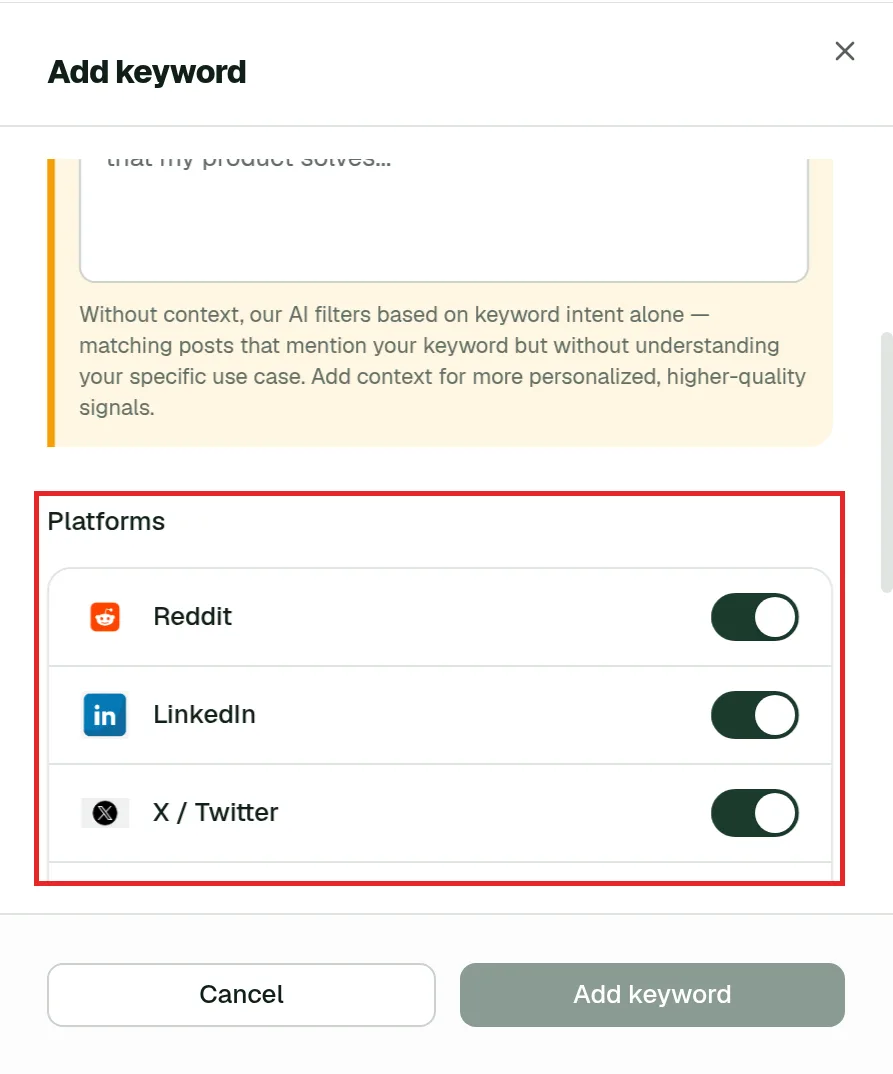
I’d keep Reddit and LinkedIn on for any plan, and I’d add X / Twitter only on Pro or Advanced (sample data from a tracked set).
That gap is the one I’d pay to close, because a buyer asking in public has already done the hard part of naming the need. When the thread sits on Reddit, read my guide to Reddit buying signals before anyone replies.
5. Keep only the posts where someone is deciding
A keyword match isn’t a buying signal yet. Plenty of posts are tutorials, announcements or job hunts, and none of those people asked for a vendor.
On Pro and Advanced, AI intent scoring and filtering sort that out. Every post carries an intent score, with noise filtered out, and the Intent filter narrows the queue to the kinds of decision you care about.
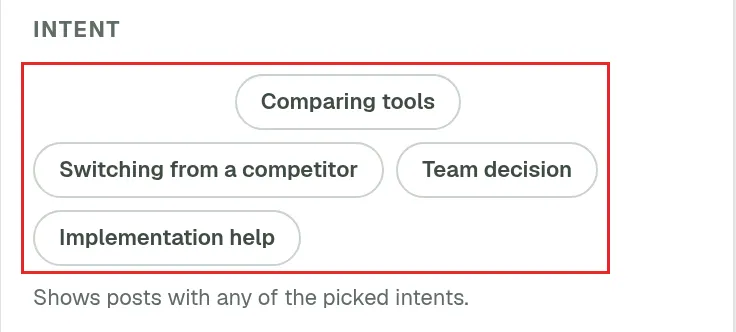
In this boxed Intent group, I’d pair Team decision with Implementation help, since those posts come from teams already choosing or rolling out a tool (sample data from a tracked set).
If a post doesn’t show a decision in progress, I’d keep it for research and leave the person alone.
6. Line up account events and conversations in one queue
Sales Navigator events and public posts work best side by side. Inside CommunityTracker, account events such as job changes, funding and hiring sit in the same ranking as community posts. The app sorts each buying signal into Hot, Warm or Watch and explains why.
Every paid plan includes lead lists, enrichment on 30+ data points that spends credits per lookup, and campaigns on LinkedIn and email. Both channels reply into a single inbox, and with approval on, nothing sends until a teammate signs off.
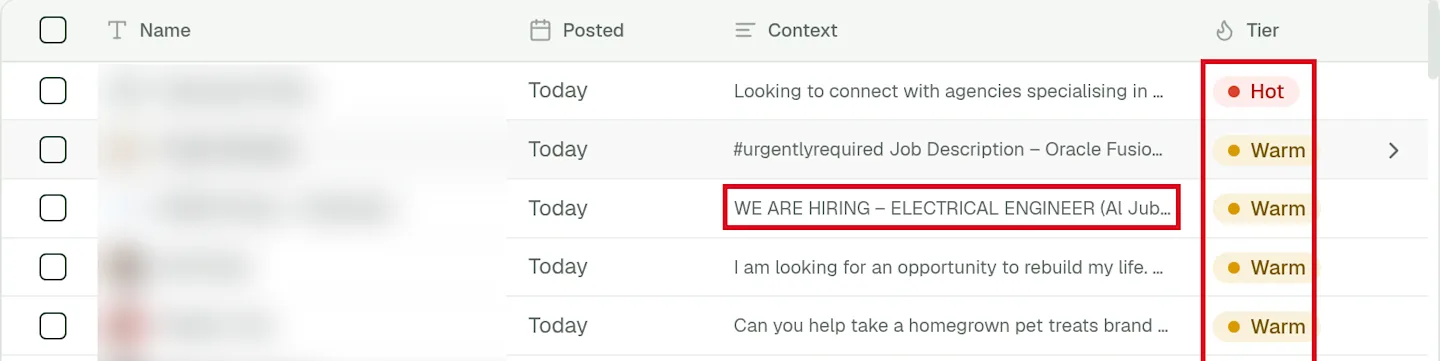
Before anyone writes, I’d check the boxed hiring post under Context against the boxed Tier in my Leads table.
For the rows that matter, open the same account in Sales Navigator and find the person who owns the problem. An account with both a Sales Navigator event and a public post is the row I’d work first every morning.
Where Sales Navigator stops and CommunityTracker starts
Sales Navigator watches saved people and accounts: job changes, role changes, hiring, funding, senior hires and engagement with your company.
CommunityTracker watches public conversations by keyword on LinkedIn and, on Pro and Advanced, the rest of the 10+ platforms, scored for buying intent.
Sales Navigator shows who changed. CommunityTracker shows who is asking.
I’d keep both, and give each its own slot in the morning review.
Three plays with placeholder first lines
Use each one as a pattern, and fill the brackets only with details from the alert or post itself.
A saved lead starts a new role
Someone new in a leadership seat is sizing up the stack they took over. Write when their remit covers the process you support. Pass on sideways moves that keep the same tools.
Example play:
Signal: Sales Navigator job-change alert, [Name] started as [Role] at [Company]. Channel: LinkedIn message, a few days after the start date. First line (placeholder): “[First name], congrats on the [Role] move. When you look at [Workflow] at [Company], what’s the first thing you’d change?”
A saved account raises money and starts hiring
Funding plus new roles in your buyer’s team points to a process someone has to build. Write when the job posts name your category. Skip rounds with no hiring in that team.
Example play:
Signal: Account raised money alert plus a hiring post for [Role] at [Company]. Channel: Email to the team lead, since there’s room for context. First line (placeholder): “[First name], the [Role] opening on your team suggests [Workflow] is getting a new owner. Who’s setting that up while the seat is open?”
A buyer compares tools in a public post
A public request for picks is the clearest signal here, and it often comes from someone you never saved. Reply when their job matches what you sell.
Example play:
Signal: A CommunityTracker post on LinkedIn tagged Comparing tools, asking about [Job]. Channel: A comment on the post first, then a message only if they reply. First line (placeholder): “[First name], for [Job] I’d check [Factor A] before [Factor B]. Happy to share how teams set that up.”
What CommunityTracker costs next to Sales Navigator
To add public conversations on top of Sales Navigator, CommunityTracker runs $39 a month on Starter, $99 a month on Pro and $199 a month on Advanced, all billed monthly. Every plan line is on the pricing page, and these three facts shape the choice.
A seven-day trial costs $4.99.
LinkedIn teams can use that week to run one keyword across every platform and compare the results with their alert feed, and the trial doesn’t renew afterward.
Starter alerts once a day.
Paired with a daily Sales Navigator check, that rhythm keeps both feeds in the same morning slot.
100 warm emails a month on Starter, unlimited on Pro.
Teams whose Sales Navigator alerts already feed an email sequence should start on Pro, in my view, so that cap never blocks a send.